How to Share Your VPN Connection with HTTP Tweak Hotspot Tethering
Turn one Android phone into a VPN-sharing hotspot by starting HTTP Tweak Internet Sharing and setting its displayed IP address and port as the client device's Wi-Fi proxy.
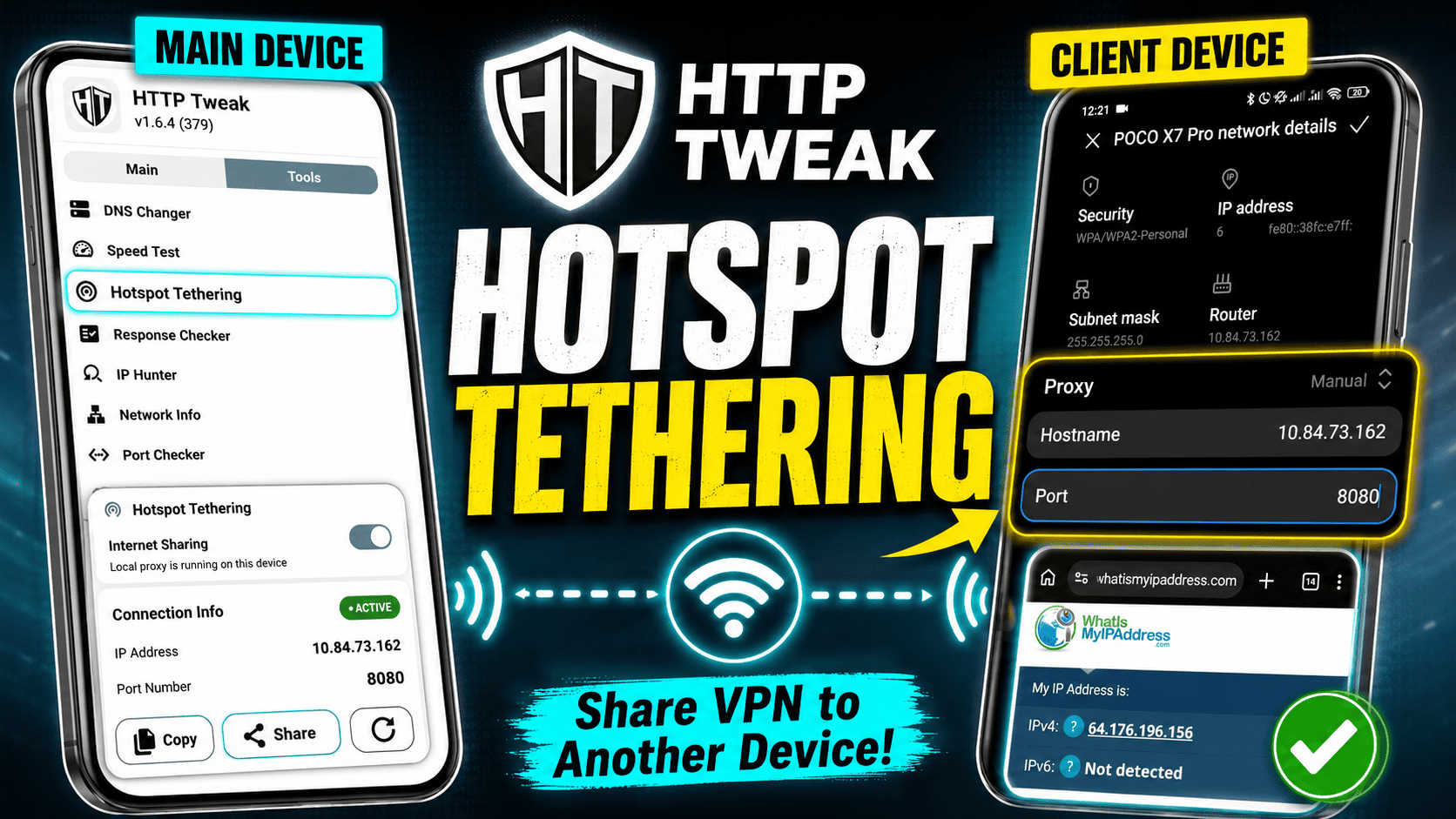
This guide is the written companion to HTTP Tweak: Share Your VPN Internet via Hotspot Tethering. The video shows how one Android phone can share access from its active HTTP Tweak connection with a second phone. The client does not need another copy of HTTP Tweak for this method; it connects to the first phone's hotspot and uses the local proxy started by HTTP Tweak.
The extra proxy step is important. An Android hotspot by itself does not always pass a phone's VPN or tunnel to connected devices. HTTP Tweak's Hotspot Tethering tool starts a local proxy on the main device, and the client sends compatible traffic to that proxy.
Use this only with devices and networks you are authorized to manage. Protect the hotspot with a strong password, allow only trusted clients, and turn Internet Sharing off when you finish.
How the setup is arranged
| Role | What it does |
|---|---|
| Main device | Runs the working HTTP Tweak connection, creates the Wi-Fi hotspot, and enables HTTP Tweak Internet Sharing. |
| Client device | Joins the hotspot and uses the main device's displayed IP address and port as a manual Wi-Fi proxy. |
The traffic path is:
Client app -> Wi-Fi proxy -> main device -> active HTTP Tweak connection -> internet
This is proxy-based sharing, not a new VPN connection on the client. Apps that honor the device's Wi-Fi proxy can use it; apps that bypass the system proxy may not.
Before you start
Make sure you have:
- a working HTTP Tweak connection on the main Android device;
- permission to use tethering on the mobile network or Wi-Fi network involved;
- hotspot access on the main device;
- a client phone, tablet, or computer that supports a manual HTTP proxy for Wi-Fi;
- enough battery power, because the tunnel, hotspot, and proxy run at the same time.
First browse to a normal HTTPS website on the main device. If the main device has no internet through HTTP Tweak, tethering will not fix that underlying connection.
Step 1: Connect HTTP Tweak on the main device
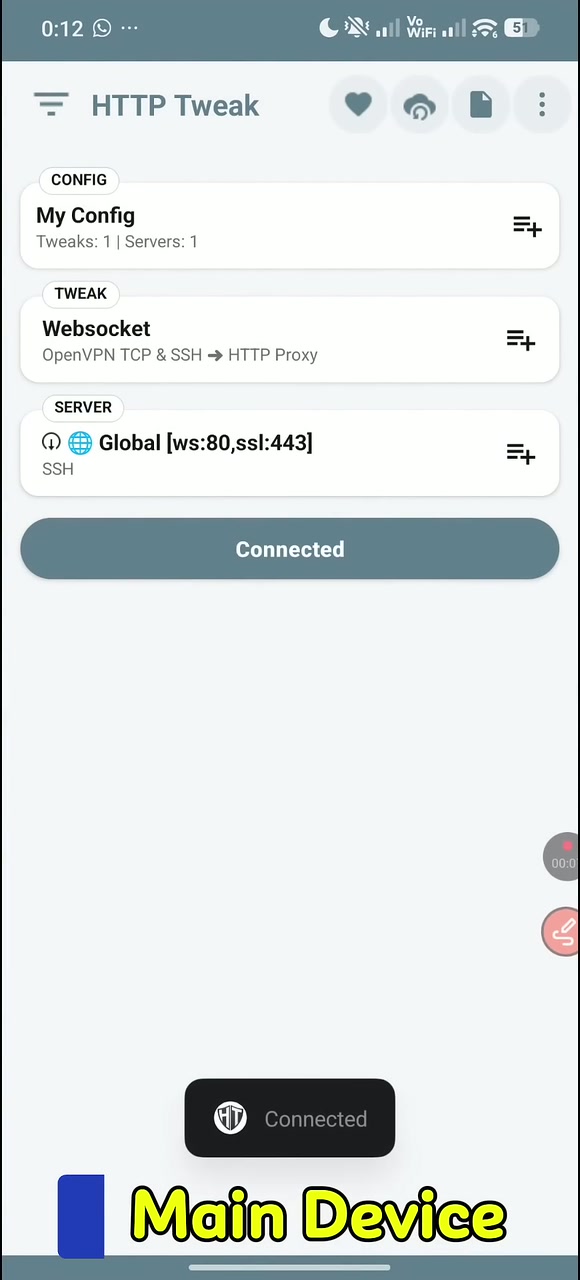
Open the intended configuration in HTTP Tweak, choose its compatible server and tweak, and connect. Wait until the app reports a successful connection, then verify that browsing works on the main device.
Troubleshoot the main connection before continuing. The second device depends on it for every request sent through the proxy.
Step 2: Start the Android hotspot
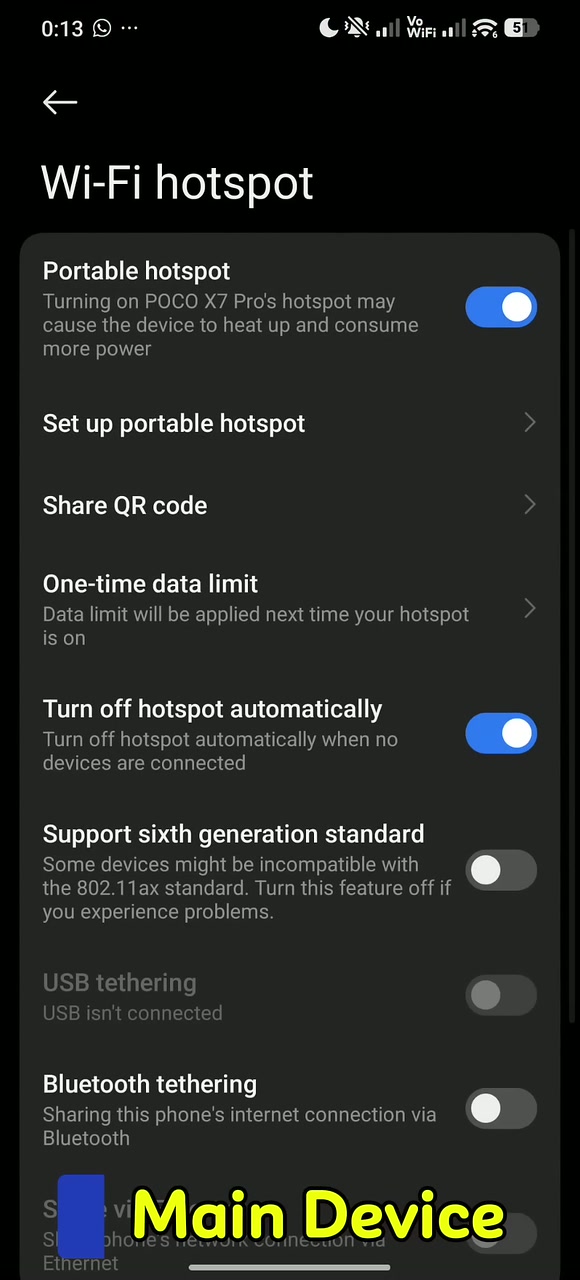
Open Android's hotspot settings on the main device and enable the Wi-Fi hotspot. Use WPA2 or WPA3 security where the device supports it, choose a strong password, and avoid an open hotspot.
Join that hotspot from the client device. Leave the Wi-Fi proxy at its default setting for the moment; you will add the values shown by HTTP Tweak after Internet Sharing starts.
Android menu names vary by manufacturer. The setting may be called Wi-Fi hotspot, Mobile Hotspot, Portable hotspot, or Hotspot & tethering.
Step 3: Turn on HTTP Tweak Internet Sharing
On the main device:
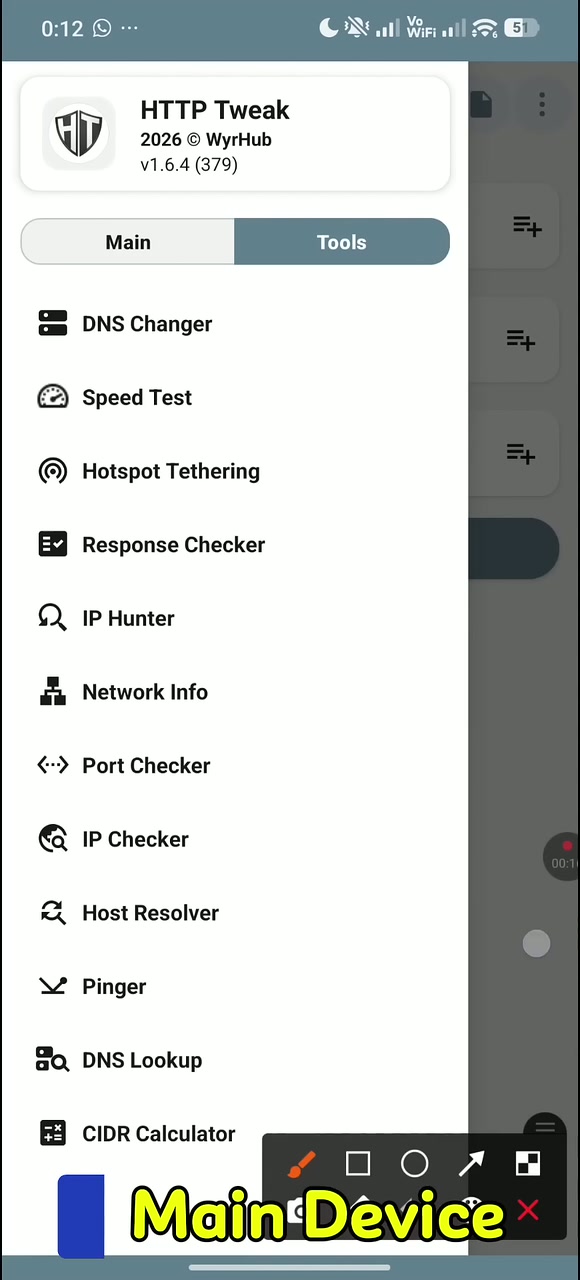
- Open HTTP Tweak.
- Select the Tools tab.
- Open Hotspot Tethering.
- Turn on Internet Sharing.
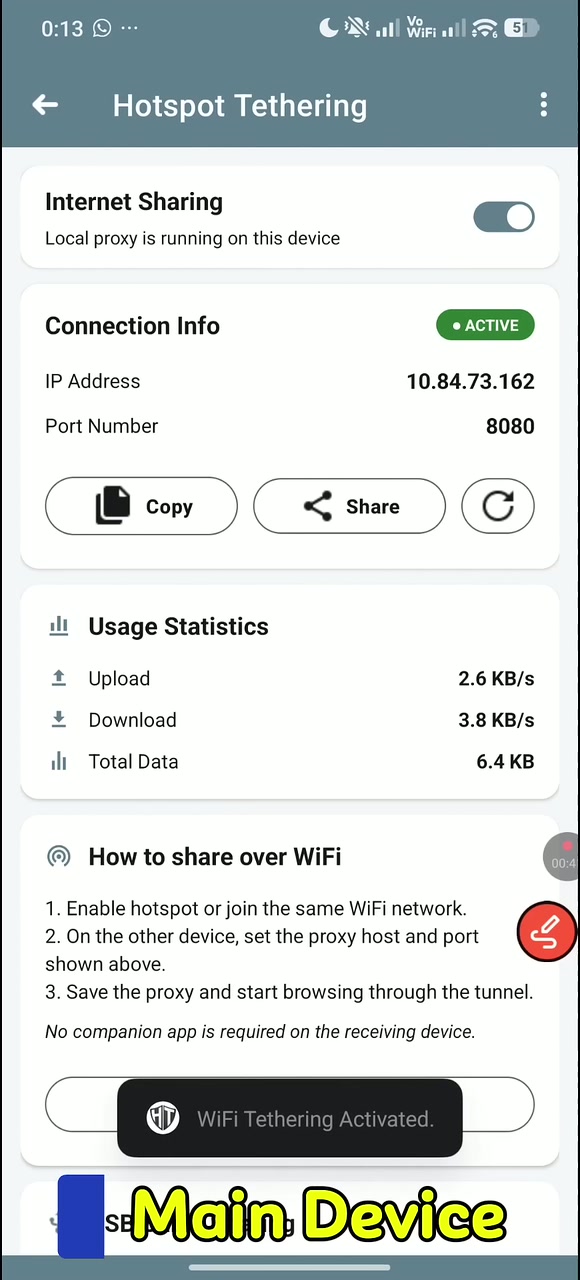
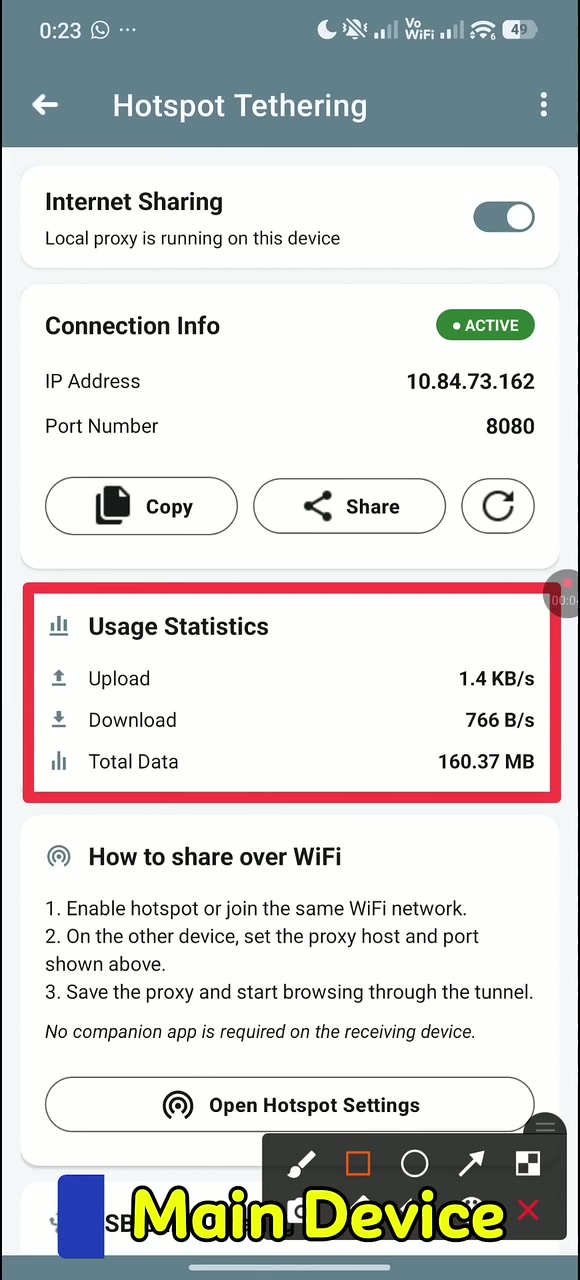
- Wait until Connection Info shows an active status, an IP Address, and a Port Number.
The video shows 10.84.73.162 and port 8080, but those are example values from that particular hotspot session. Use the values displayed on your own main device. Do not copy the example address into your client unless HTTP Tweak actually shows it.
The Copy and Share actions can help transfer the connection information, while the refresh action is useful after a hotspot or network change. Keep the Hotspot Tethering screen active until the local proxy reports that it is running.
Step 4: Add the proxy on the client device
On the client Android phone shown in the video:
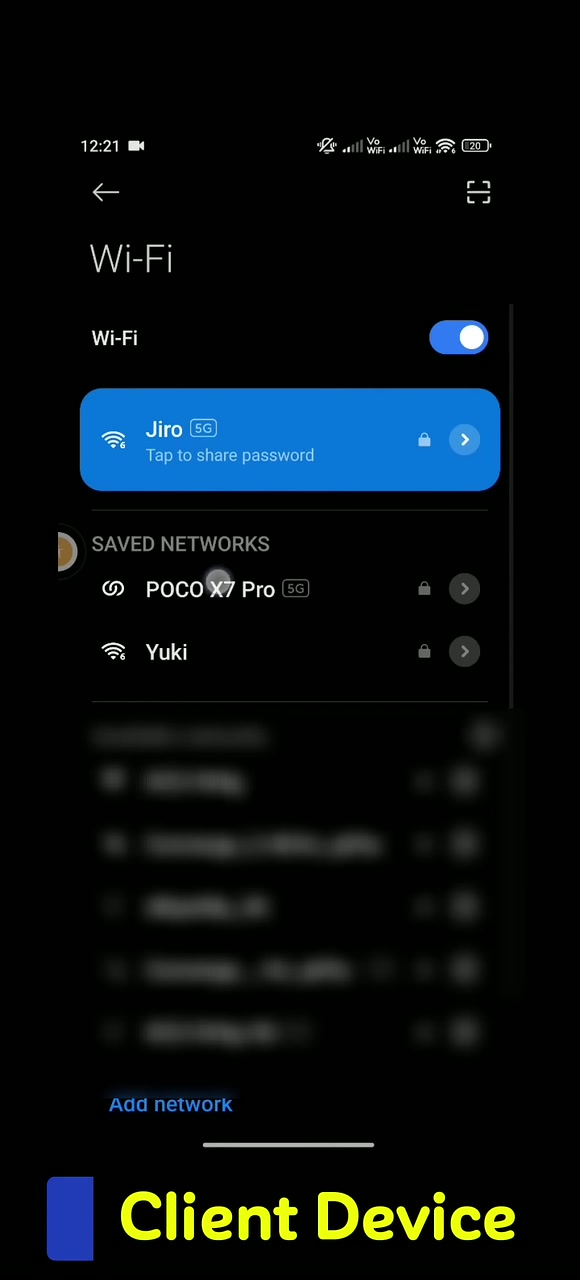
- Open Wi-Fi settings.
- Open the details or edit screen for the hotspot network you just joined.
- Expand Advanced options if necessary.
- Change Proxy from None to Manual.
- Enter the main device's HTTP Tweak IP Address in Proxy hostname or Hostname.
- Enter the displayed Port Number in Proxy port or Port.
- Leave the proxy bypass field unchanged unless you have a specific local-network requirement.
- Save the network settings and reconnect if Android asks you to.
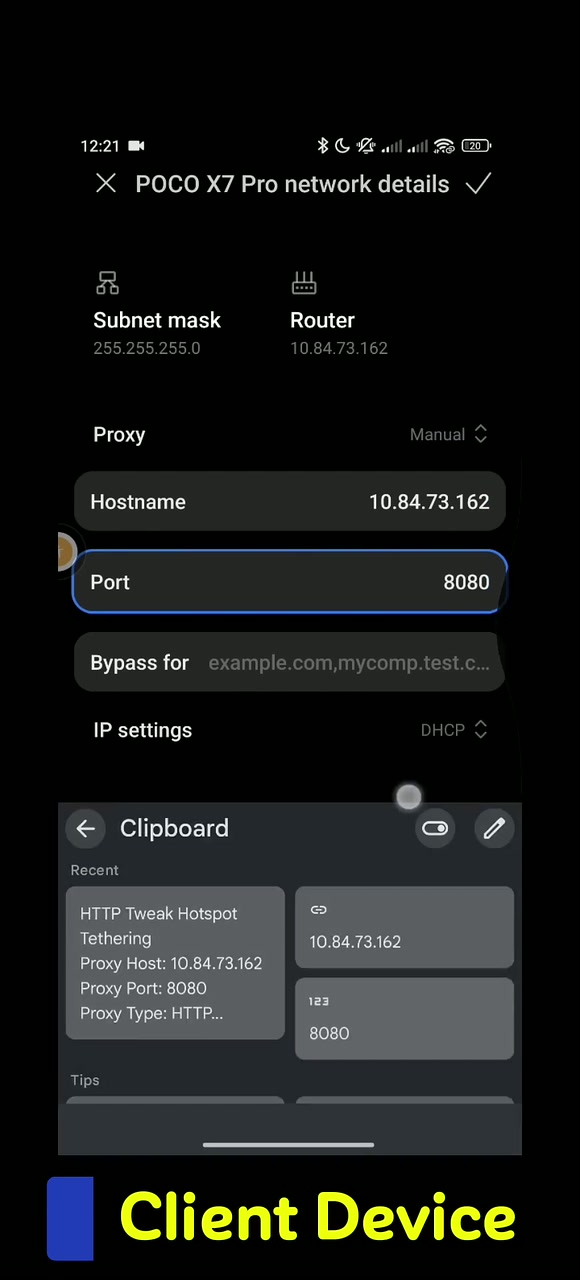
Enter only the hostname and port. Do not add http://, a path, spaces, or the two values joined together in the hostname field.
For example, if your HTTP Tweak screen displays 10.84.73.162 and 8080, use:
| Client Wi-Fi field | Value |
|---|---|
| Proxy | Manual |
| Hostname | 10.84.73.162 |
| Port | 8080 |
Again, replace both example values with the current values from your own device.
Step 5: Verify the shared connection
Open a browser on the client and load an HTTPS website. The video verifies the setup with a public IP-check page. You can do the same to confirm that the page loads and that the visible public address is consistent with the active HTTP Tweak route.
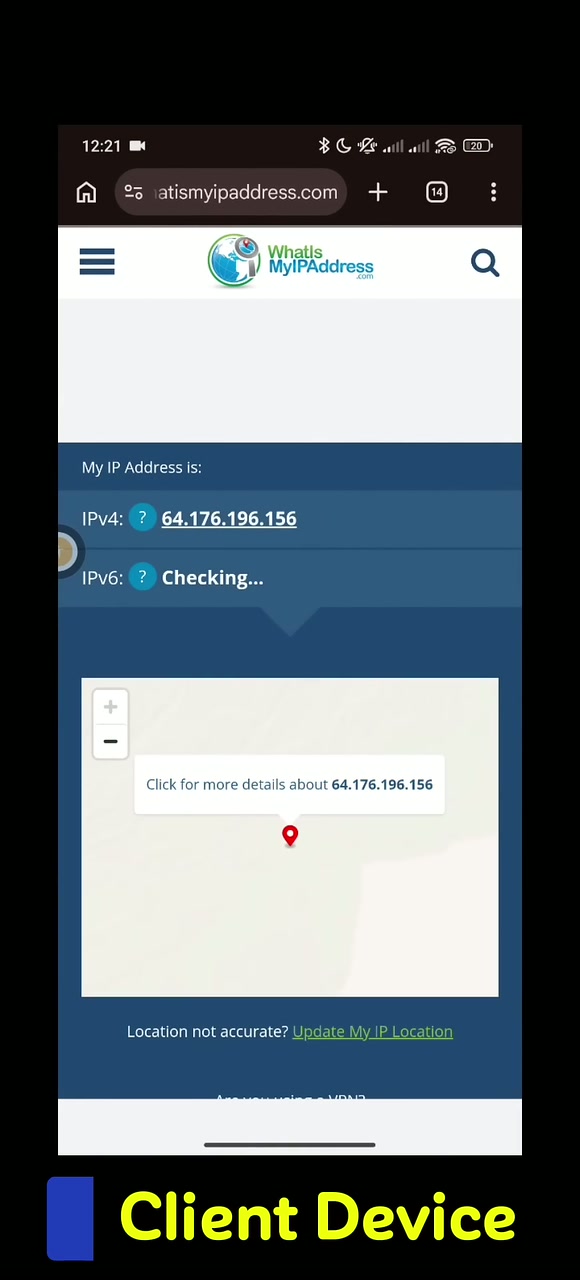
A successful browser test proves that the browser can reach the local proxy and use the main device's connection. It does not guarantee that every client app will work through the proxy.
Test in this order:
- Confirm browsing still works on the main device.
- Confirm the client remains connected to the correct hotspot.
- Load a simple HTTPS page on the client.
- Check the public IP only after ordinary browsing works.
- Test any other required client app separately.
What Hotspot Tethering can and cannot share
The client is configured with an HTTP proxy. That distinction explains most compatibility questions.
| Usually works | May not work |
|---|---|
| Browsers and apps that follow Android's or the operating system's Wi-Fi proxy setting | Apps that ignore the system proxy |
| HTTP and HTTPS requests supported through the proxy | Direct UDP traffic, many games, casting, and some voice or video apps |
| More than one trusted client when the main device and network can handle the load | Devices that cannot set a manual proxy |
This feature does not install a VPN profile on the client and does not promise device-wide tunneling for every protocol. If a browser works but one app does not, the hotspot and HTTP Tweak proxy may already be configured correctly; the app may simply bypass manual proxies.
Never install an unknown certificate to make a site work. A normal HTTPS site should remain protected end to end through the proxy. If the client reports unexpected certificate warnings, stop and recheck the network and proxy values.
Keep the connection running reliably
The main device must keep all three parts available: its HTTP Tweak connection, the Android hotspot, and HTTP Tweak Internet Sharing. If any one stops, the client loses access.
For a longer session:
- keep the main device charged;
- disable the hotspot's automatic shutoff while a client is actively using it;
- allow HTTP Tweak to run in the background if Android battery optimization stops it;
- keep mobile data or the intended upstream network active;
- refresh Connection Info after restarting the hotspot;
- update the client's manual proxy if the displayed IP address or port changes.
When finished, turn off Internet Sharing, remove the manual proxy from the client network, and disable the hotspot if you no longer need it. Leaving a stale manual proxy configured can make that Wi-Fi network appear to have no internet later.
Troubleshooting
The client connects to Wi-Fi but websites do not load
Confirm that HTTP Tweak is connected on the main phone and that Internet Sharing still shows active. Compare the client hostname and port character for character with the current Connection Info. The client must be connected to the same hotspot interface whose address HTTP Tweak displays.
The proxy address is rejected
Enter the numeric IP address without http:// or https://. Put the port in its separate field. If the hotspot was restarted, refresh Connection Info and use the new values.
The browser works but another app does not
That app may ignore Android's Wi-Fi proxy or use traffic the proxy does not carry. This is an application compatibility limit, not necessarily a failed hotspot setup.
Sharing stops when the main phone's screen turns off
Check Android battery optimization, background-use permission, data saver, and the hotspot auto-off setting. Exact menus vary by phone. Restore only the minimum background access needed and keep an eye on battery use and temperature.
The client still has no internet after sharing is stopped
Edit the saved hotspot network on the client and set Proxy back to None, or forget the hotspot and join it again. The manual proxy points to a service that is no longer running once Internet Sharing is off.
The connection is slow
The main device is running a tunnel, proxy, and hotspot simultaneously. Check its upstream signal, VPN server capacity, power-saving state, temperature, and the number of connected clients. Test with one client before adding more.
Security checklist
- Use a strong hotspot password and modern Wi-Fi security.
- Share the proxy details only with people allowed to use the connection.
- Review the hotspot's connected-device list and remove devices you do not recognize.
- Do not expose the proxy port through router forwarding or a public network.
- Avoid sending private configuration keys, server credentials, or API keys with the proxy details.
- Stop Internet Sharing and remove the client proxy when the session ends.
- Follow the upstream network's terms, local law, and your organization's access policy.
Frequently asked questions
Does the client device need HTTP Tweak installed?
No. In the video workflow, only the main device runs HTTP Tweak. The client joins its hotspot and uses the IP address and port as a manual Wi-Fi proxy.
Is enabling the Android hotspot enough?
Not for this method. You must also enable HTTP Tweak Internet Sharing on the main device and configure the client Wi-Fi proxy with the displayed address and port.
Can I share the connection with a laptop or tablet?
Yes, when the device can join the hotspot and supports a manual HTTP proxy. Use the same current hostname and port in that operating system's proxy settings. Application-level proxy support still varies.
Does this route every app through HTTP Tweak?
No. It routes traffic from applications that use the configured Wi-Fi proxy. Some apps and protocols bypass or do not support that proxy.
Why did the IP address change?
The hotspot interface can receive a different private address after it is restarted or the network state changes. Refresh HTTP Tweak Connection Info and update the client proxy whenever the displayed value changes.
Video companion
Watch HTTP Tweak: Share Your VPN Internet via Hotspot Tethering for the complete visual walkthrough. Use this article as the detailed checklist for setup, compatibility, security, and troubleshooting.